








System Health Check
GalataJ includes a built-in health check that diagnoses issues and fixes them automatically.
Running a Health Check
Section titled “Running a Health Check”IntelliJ IDEA
Section titled “IntelliJ IDEA”- Open the Profiler panel
- Click the Health button in the toolbar
VS Code / Cursor / Windsurf
Section titled “VS Code / Cursor / Windsurf”- Open the GalataJ sidebar panel
- Look at the System Health section
Or use Command Palette: GalataJ: Health Check
Understanding Results
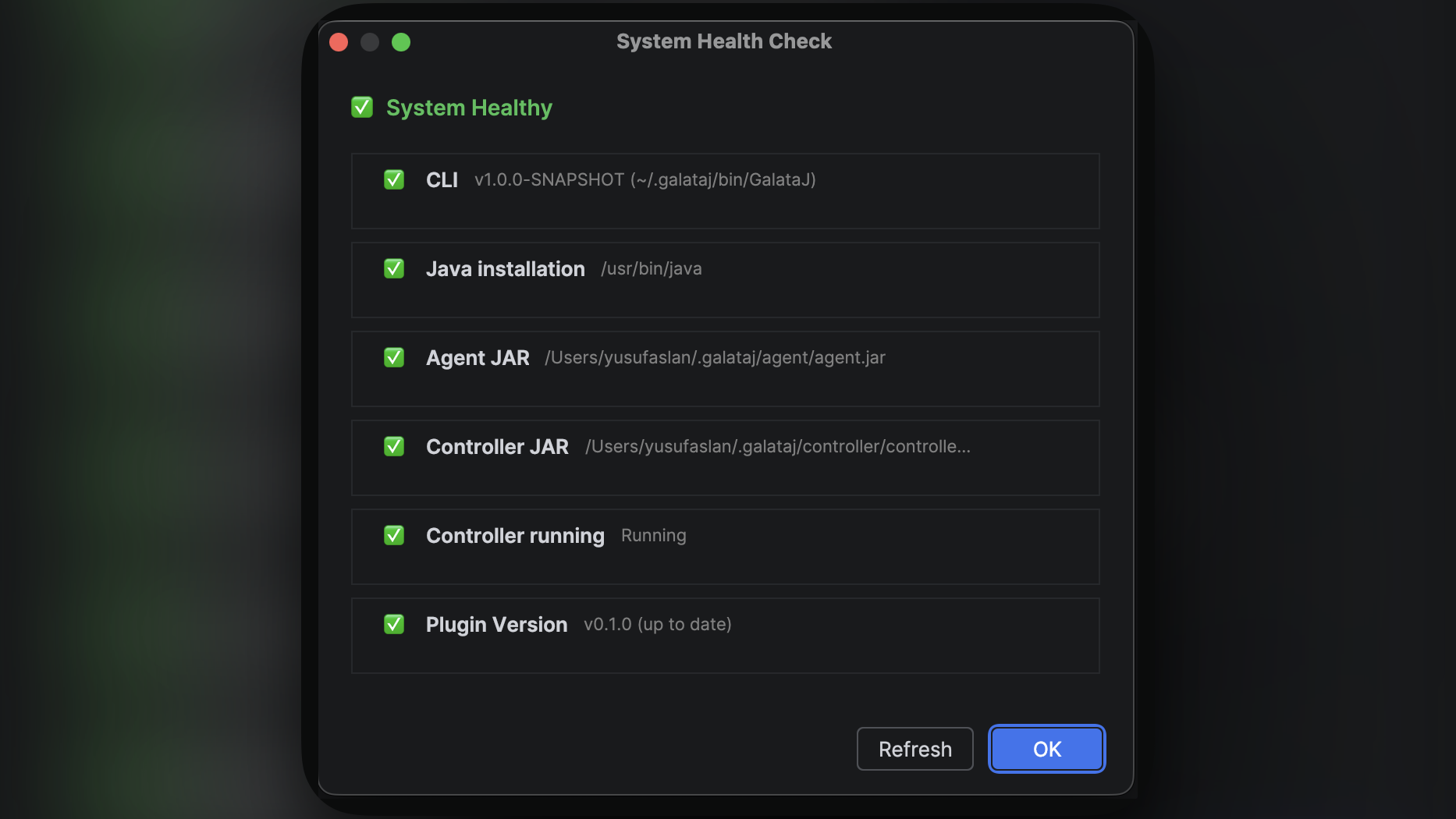
Section titled “Understanding Results”The health check shows the status of each component:
Status Indicators
Section titled “Status Indicators”| Status | Meaning |
|---|---|
| 🟢 OK | Component is working properly |
| 🟡 Warning | Something to note, but not blocking |
| 🔴 Error | Needs to be fixed before profiling works |
Components Checked
Section titled “Components Checked”| Component | What it checks |
|---|---|
| CLI | GalataJ command-line tool is installed |
| Java | Java JDK is available on your system |
| Controller | Controller component exists |
| Controller Running | Controller is currently active |
| Plugin Version | Whether updates are available |
Overall Status
Section titled “Overall Status”The health check shows an overall status at the top:
| Status | Meaning |
|---|---|
| Healthy | Everything works, ready to profile |
| Degraded | Some warnings, but profiling should work |
| Unhealthy | Critical issues, fix before profiling |
When to Run Health Check
Section titled “When to Run Health Check”Run a health check when:
- You just installed the plugin
- Profiling won’t start
- JVMs don’t appear in the list
- Metrics aren’t showing up
- Something seems wrong
Quick Tip
If profiling isn’t working, Health Check should be your first step. It usually identifies and fixes the problem automatically.
Common Issues
Section titled “Common Issues””CLI not found”
Section titled “”CLI not found””The GalataJ command-line component isn’t installed.
Fix: Click the Fix button to download it, or reinstall the plugin.
”Controller not running”
Section titled “”Controller not running””The profiling controller isn’t active.
Fix: Click the Run Controller button to start it.
”Java not found”
Section titled “”Java not found””No Java JDK detected on your system.
Fix: Install a JDK (Java 8 or later). The Fix button opens the Adoptium download page.
”Update available”
Section titled “”Update available””A newer version of GalataJ is available.
Fix: Click to update. Restart your IDE after updating.
Next Steps
Section titled “Next Steps”- Troubleshooting — More detailed problem solving
- Quickstart — Start profiling once health check passes